Introducing AI Slide Redesign — Transform Any Slide with One Click
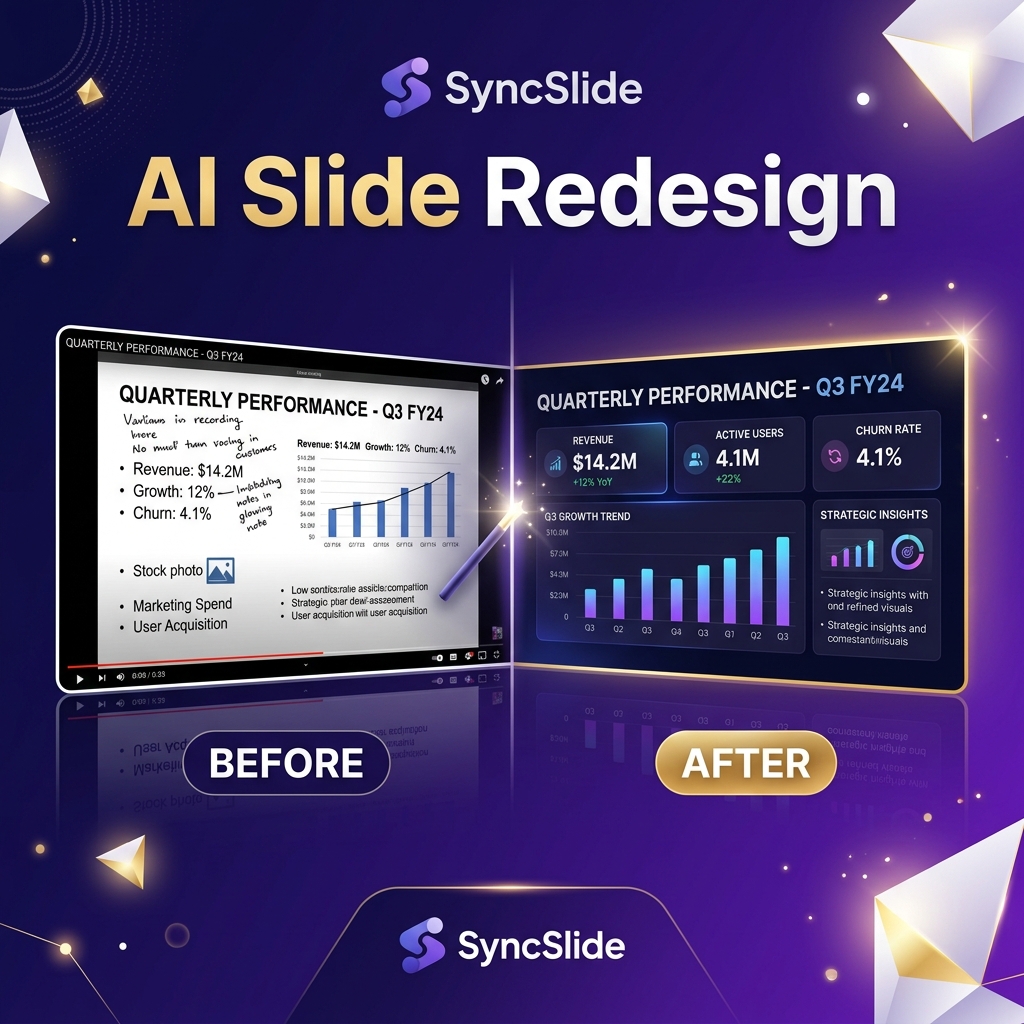
Not happy with a slide? Now you can select any slide, choose a design template, and let AI completely redesign it — new visuals, polished text, and professional speaker notes. Your originals are always preserved.

SyncSlide has always been about one thing: turning your videos into professional presentations with zero effort. Upload a recording, and our AI handles the rest — scene detection, text extraction, transcription, and slide generation.
But what happens when the output is good enough — but not quite what you had in mind?
Today we're launching AI Slide Redesign, and it changes everything.
The Problem We Solved
Until now, SyncSlide generated slides that faithfully captured your video content. High-fidelity images, accurate text, clean speaker notes. But slide design is subjective. A raw slide capture from a Zoom meeting doesn't always look the way you'd present it to a client. A lecture recording might need to become a clean study guide.
Previously, you'd export to PowerPoint or Google Slides and manually redesign each slide. That takes time — sometimes more time than the original video was long.
We asked ourselves: what if one click could do it all?
How It Works
AI Slide Redesign is built directly into the Slide Editor. Here's how:
1. Select Your Slides
Open any completed job in the Slide Editor. Click on a slide thumbnail to expand it, then check the slides you want to redesign — one, several, or all of them.
2. Choose a Design Template
Click the ✨ Regenerate with AI button in the toolbar. A gallery of design templates appears:
- Professional — Clean, corporate-style slides with structured layouts
- Modern Minimal — Sleek, minimal design with generous whitespace
- Educational — Clear, structured slides optimized for learning
- Creative — Bold, eye-catching design with dynamic layouts
Pick the one that fits what you need.
3. AI Redesigns Your Slides
For each selected slide, our AI looks at three things:
- The slide image — to understand the visual layout, photos, diagrams, or charts
- The extracted text — to make sure nothing important is left out
- The speaker transcript — to create meaningful, context-aware speaker notes
Within seconds, you get back a redesigned slide with a fresh visual, polished text, and professional speaker notes.
4. Switch Between Versions Anytime
Here's the best part: your original slide is never deleted. Every redesign is saved as a new version. A version switcher appears on each redesigned slide, letting you toggle between the original and any AI-redesigned version with a single click.
When you export — whether to PowerPoint, Google Slides, or PDF — the currently active version of each slide is used.
Which Template Should I Use?
Each template produces a distinctly different result. Here's a quick guide:
| Template | Best For | Style |
|---|---|---|
| Professional | Client presentations, boardroom decks | Clean lines, corporate colors, structured layout |
| Modern Minimal | Executive summaries, internal reports | Generous whitespace, focused content, sleek aesthetic |
| Educational | Lecture notes, training materials, study guides | Clear hierarchy, learning-optimized structure |
| Creative | Marketing content, social media, tutorials | Bold visuals, dynamic layouts, high visual impact |
You can always redesign the same slide with a different template to compare — every version is saved.
What About Credits?
AI Slide Redesign uses credits per slide. The exact cost per slide is shown before you confirm, so there are no surprises. You can redesign a single slide or batch-process multiple slides at once.
If anything goes wrong during generation — a network issue, a timeout, anything — credits are automatically refunded. You only pay for successful redesigns.
Version History: Nothing Is Ever Lost
We think of Version History as AI Slide Redesign's safety net. Every redesign is saved alongside all previous versions:
- Original — the slide as it was first captured from your video
- Professional — your first AI redesign
- Creative — a second redesign with a different template
Switch between any version with one click. This means you can experiment freely — try the Modern Minimal look, compare it with the Educational layout, and always go back to the original if you prefer it.
Try It Today
AI Slide Redesign is available now for all users with credits. Here's how to get started:
- Go to your Dashboard → open any completed job
- Click "View & Edit Slides" to enter the Slide Editor
- Select slides you want to redesign (click on a thumbnail first to expand the editor)
- Click ✨ Regenerate with AI → choose Professional, Modern Minimal, Educational, or Creative → done
Your first redesign takes just seconds. And with Version History, there's zero risk in experimenting.
AI Slide Redesign is available on all SyncSlide plans. Credits are charged per slide — the exact cost is displayed before you confirm.
![The Death of Desktop Recording Software [New Feature]](/images/blog/screen_recorder_cover.png)
![How to Convert Zoom Recordings to PowerPoint [2025 Guide]](/images/blog/dashboard-mockup.png)