How to Convert Zoom Recordings to PowerPoint [2026 Guide]
Compare manual and assisted ways to turn a downloaded Zoom recording into PowerPoint slides with reviewable transcript notes.

![How to Convert Zoom Recordings to PowerPoint [2026 Guide]](/images/blog/dashboard-mockup.webp)
If you've ever sat through a Zoom meeting thinking "I wish I could turn this into slides," you're not alone. Whether it is a training session, webinar, or important team meeting, converting a recording to PowerPoint can reduce repetitive manual capture.
In this comprehensive guide, we'll walk you through three methods to convert Zoom recordings to PowerPoint—from manual approaches to AI-powered automation.
Why Convert Zoom Recordings to Slides?
Before diving into the how-to, let's consider why you might want to do this:
- Easy sharing: Slides are easier to share and review than hour-long videos
- Quick reference: Find key points without scrubbing through video
- Accessibility: Written content is more accessible than video
- Repurposing: Turn one meeting into multiple content pieces
- Documentation: Create permanent records of important sessions
Method 1: Manual Screenshot Approach
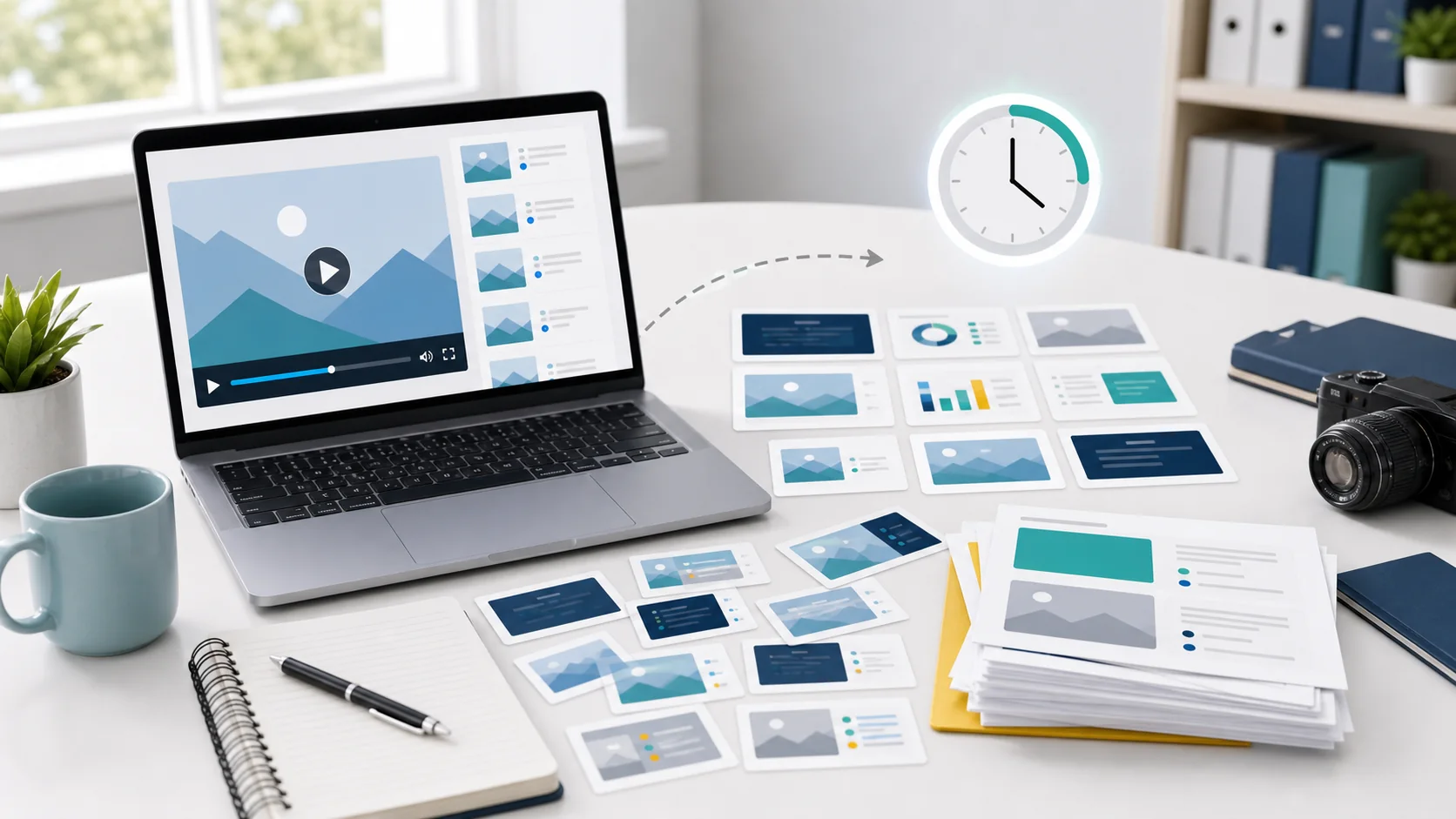
The most straightforward method is taking screenshots and manually creating slides.
Steps:
- Play your Zoom recording in a video player
- Pause at key moments and take screenshots (Windows:
Win+Shift+S, Mac:Cmd+Shift+4) - Open PowerPoint and create a new presentation
- Insert screenshots one per slide
- Add text notes from your memory or the transcript
Pros and Cons
| Pros | Cons |
|---|---|
| Free | Extremely time-consuming |
| Full control | Easy to miss important points |
| No software needed | No transcript included |
Method 2: Zoom's Built-in Transcript
Zoom offers automatic transcription that you can copy into slides.
Steps:
- Enable transcription in Zoom settings before recording
- Download the transcript (VTT or TXT file) after the meeting
- Create slides in PowerPoint manually
- Copy relevant sections of the transcript to each slide
Accessing Zoom Transcripts
Zoom Web Portal → Recordings → Select Recording → Transcript Tab
This method gives you the text, but you still need to manually match it with visual content.
Method 3: AI-Powered Conversion with SyncSlide
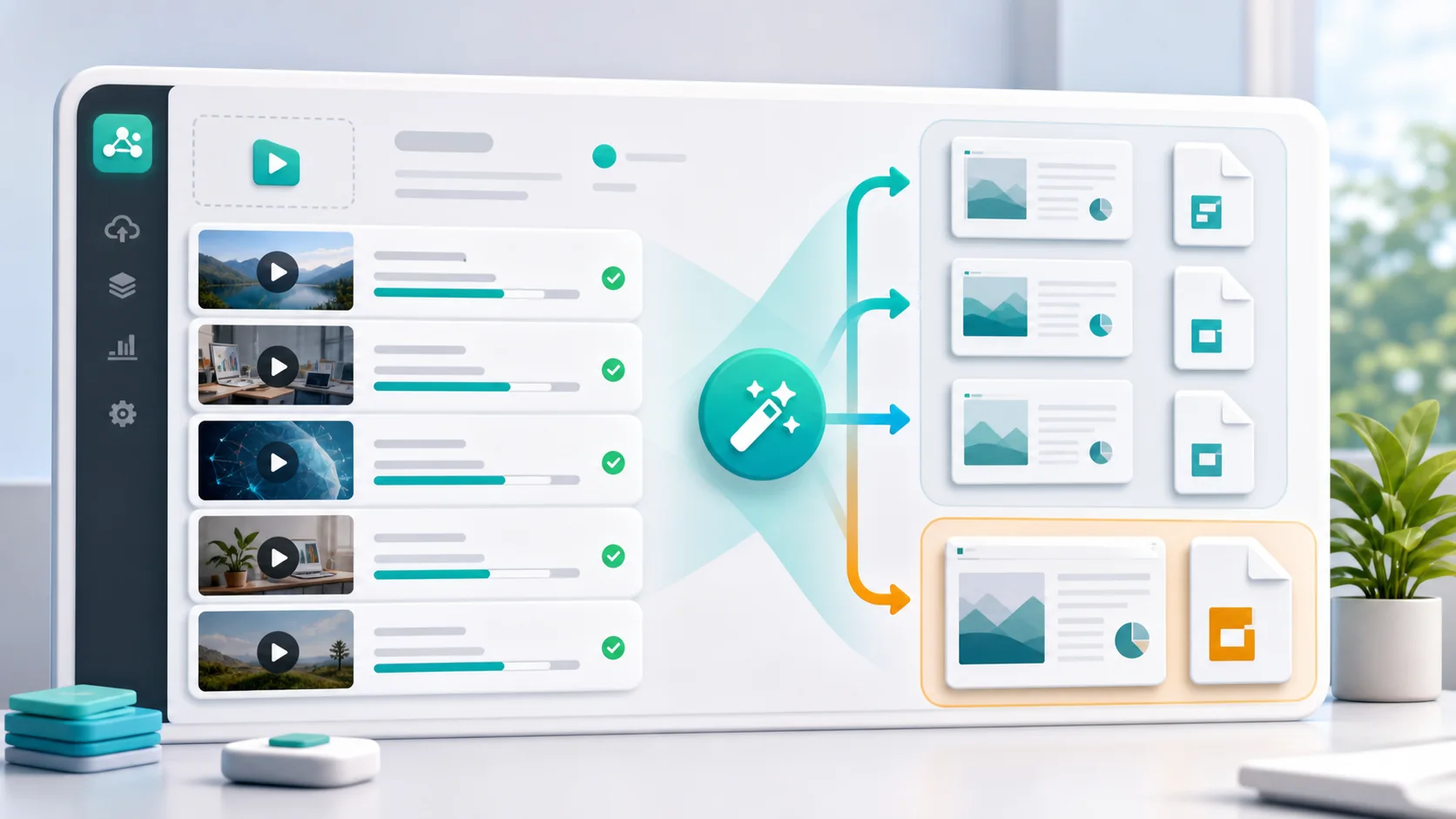
An automated option uses SyncSlide to:
- Select visually distinct scenes
- Extract on-screen text via OCR
- Transcribe audio
- Build a chronological deck with aligned notes
How SyncSlide Works

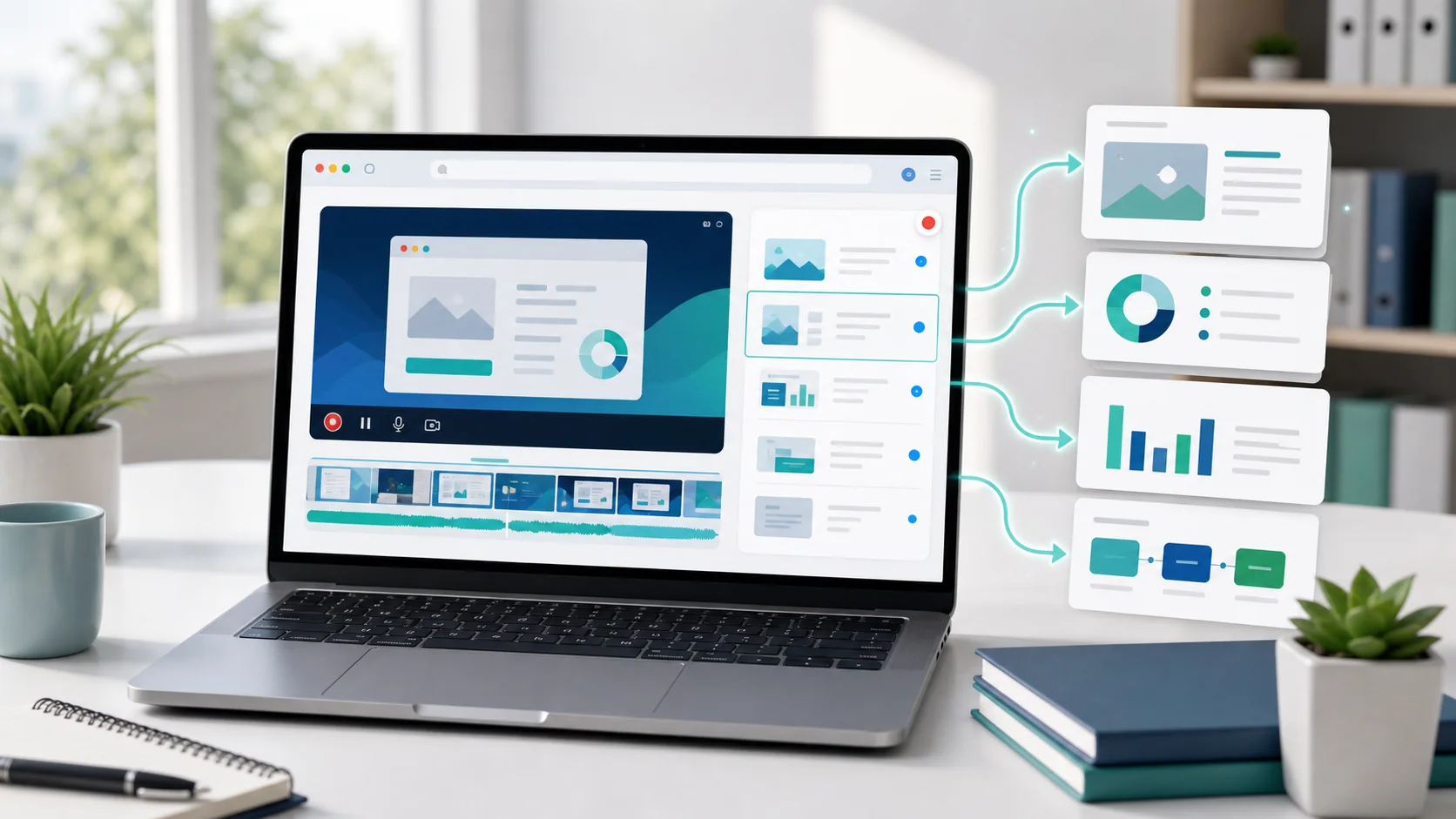
- Download and upload your Zoom recording (MP4, MOV, WebM, or another supported video file)
- AI analyzes the video identifying key frames and extracting text
- Review and edit the generated slides
- Export to PowerPoint or PDF, or send the deck to a connected Google Slides account
Key Features for Zoom Recordings
-
Scene detection: Automatically identifies when content changes
-
OCR extraction: Captures text from shared screens

-
Speaker notes: Adds transcription as speaker notes
-
Optional transcript cleanup: Produces a revised text version that you can compare and edit
Best Practices for Better Results
Regardless of which method you choose, these tips will help:
Before the Meeting
- Use good lighting if recording video
- Share screens clearly with large fonts
- Speak clearly for better transcription
During Conversion
- Review all slides for accuracy
- Remove duplicate frames from scene changes
- Edit transcriptions for clarity
- Add context that may be missing
After Conversion
- Add your branding (logo, colors)
- Include slide numbers for reference
- Create a summary slide at the end
Comparison: Manual vs. AI-Powered
| Factor | Manual | AI (SyncSlide) |
|---|---|---|
| Workflow | Manual review and capture | Automatic processing |
| Accuracy | Depends on the reviewer | Depends on source quality; review is included |
| Transcription | Manual | Automatic |
| Cost | Your own time and tools | Uses the credit estimate shown before processing |
| Effort | High | Low |
Common Issues and Solutions
Issue: Poor Video Quality
Solution: Use the highest-resolution recording available. Clear shared-screen text gives scene detection and OCR more useful source material.
Issue: Multiple Speakers
Solution: The transcription captures the meeting audio. Review the text and add or correct speaker labels before sharing.
Issue: Screen Sharing with Small Text
Solution: Ask presenters to use larger fonts. OCR works best when the text remains legible in the recorded frame.
Getting Started with SyncSlide
Ready to try the AI-powered approach? Here's how to get started:
- Create an account at syncslide.com
- Upload your Zoom recording within the limits shown for your account
- Configure options (transcription, optional text extraction, cleanup)
- Download your slides in your preferred format
The Pricing page shows the account and credit options currently available. SyncSlide also shows your live balance and the exact credit estimate before you start processing.
For a conversion-focused walkthrough, see the Zoom recording to PowerPoint converter.
Conclusion
Converting Zoom recordings to PowerPoint does not have to be entirely manual. SyncSlide automates scene selection and transcript alignment while leaving you with a review step before sharing.
The choice depends on your needs:
- Occasional conversions: Manual method works fine
- Regular conversions: AI tools save significant time
- Material intended for others: Whichever method you choose, complete a careful human review
Ready to transform your next Zoom recording into professional slides? Create a SyncSlide account and review the estimate before processing.
Frequently Asked Questions
Can I convert Zoom recordings directly from the cloud?
Not currently. Download the recording from Zoom first, then upload the video file to SyncSlide. The built-in recorder is available for new browser-based captures.
How long does AI conversion take?
Processing time varies with recording length and the features you choose. The job page shows progress while your recording is processed.
What video formats are supported?
Use a file format accepted by the current upload screen. Its file picker and validation message provide the latest guidance.
Is my video data secure?
Videos are encrypted in transit and at rest. The Privacy Policy states the current retention periods, and you can delete jobs earlier from your account.
Can I edit the slides after generation?
You can edit OCR text, transcripts, and speaker notes; reorder, merge, delete, or restore slides; and export to PowerPoint or PDF. The source visuals remain pixel-faithful images rather than reconstructed PowerPoint shapes. With a connected Google account, you can also send the deck to Google Slides.