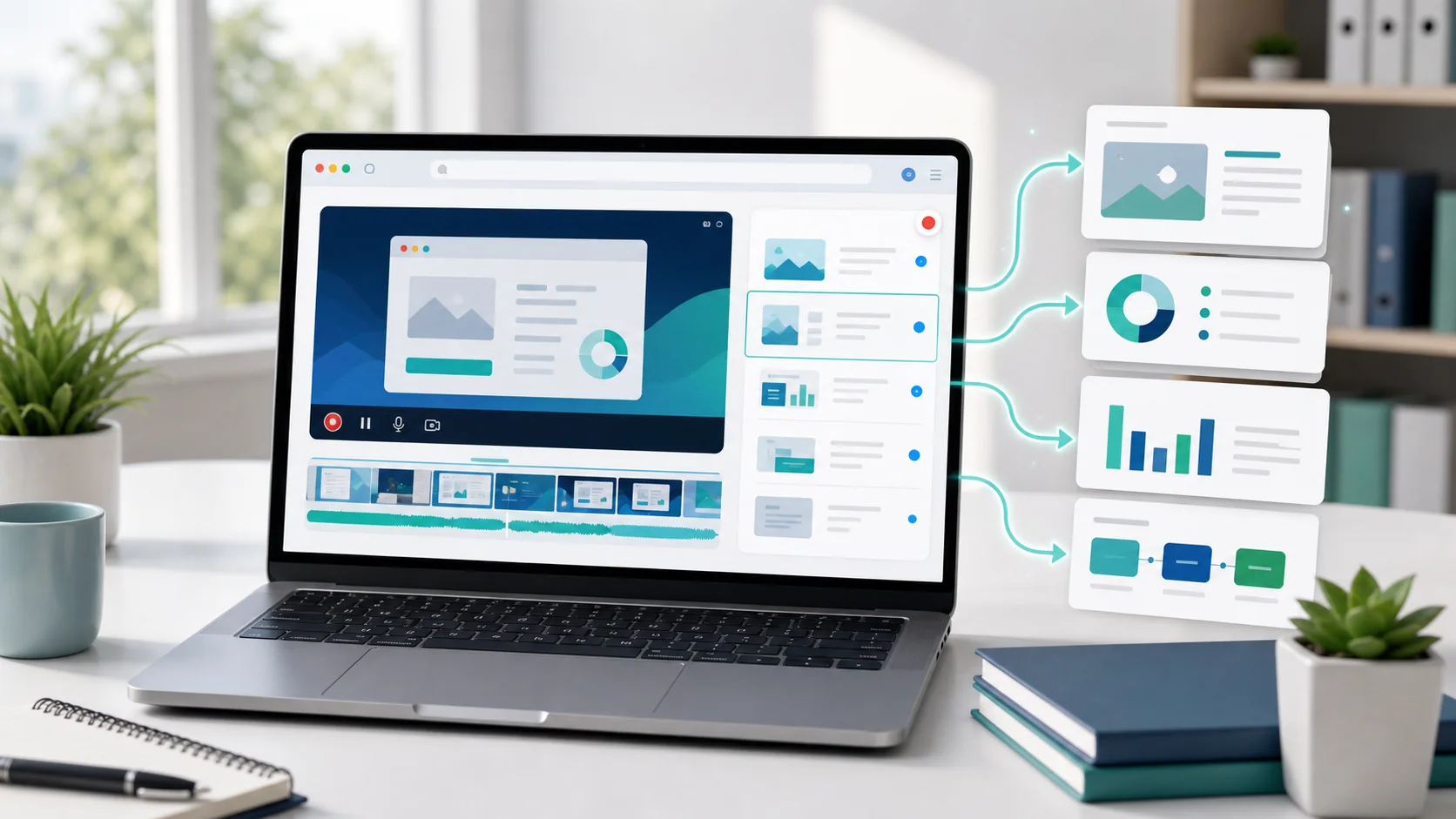
How to Batch Convert Multiple Videos into Slide Decks
SyncSlide batch upload lets you add related videos, choose separate presentation jobs, or merge several recordings into one ordered deck.

Training recordings, product demos, onboarding clips, and enablement walkthroughs often arrive as a set instead of one perfect video.
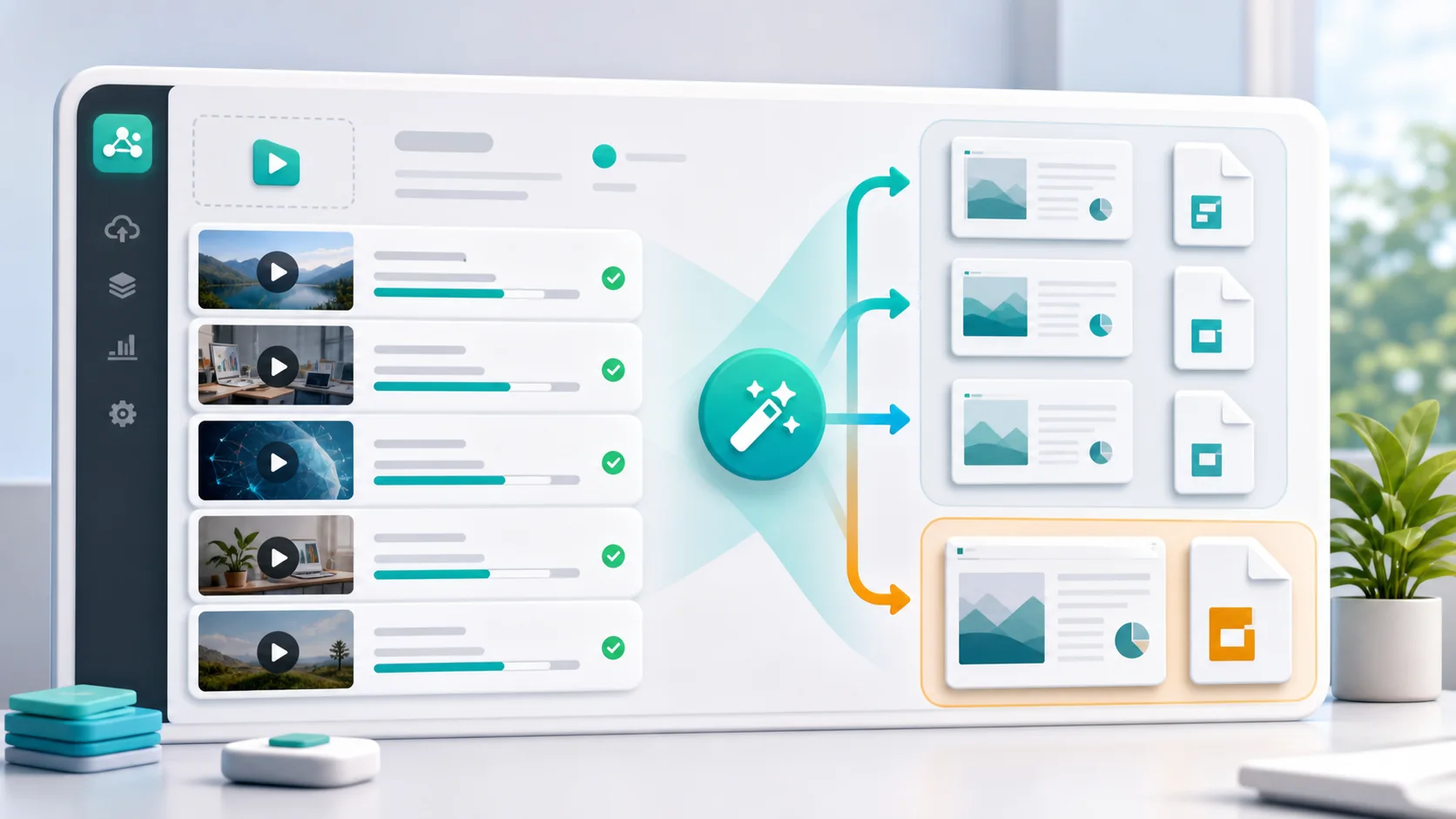
SyncSlide now gives that workflow a dedicated batch path: add multiple videos, review the batch summary, then choose whether the recordings should become separate presentations or one merged deck.
What Batch Upload Does
The batch upload flow accepts multiple video files in one dashboard session.
The uploader shows and enforces the current file limit.
After the files are uploaded and analyzed, SyncSlide shows the video count, total duration, estimated credits, and available credit balance before processing starts.
From there, you choose one of two processing modes.
Mode 1: Individual Presentations
Use individual mode when every recording should become its own presentation.
This is useful when a training library has separate modules, such as onboarding, product setup, feature walkthroughs, and refresher sessions.
In individual mode, SyncSlide creates a separate conversion job for each video that is successfully submitted.
Each job follows the normal video-to-slides path, so the generated material can be reviewed and exported from the dashboard.
Mode 2: Merged Presentation
Use merged mode when several videos should read as one continuous deck.
In merged mode, SyncSlide uses the selected video order and processes the recordings as one presentation job.
The dashboard lets you drag videos into the right order before processing.
Transitions between source recordings remain boundaries during scene selection, helping the merged deck follow the sequence you reviewed.
Supported Inputs and Outputs
Use MP4, AVI, MOV, MKV, or WebM files for the batch workflow.
The video-to-slides workflow generates PowerPoint and PDF outputs. With a connected Google account, you can also send the deck to Google Slides.
The batch flow uses the same controls that matter for slide extraction: scene detection, transcription, OCR, and transcript cleanup.
When to Use Batch Upload
Use batch upload when you already have a group of related recordings and want to turn them into presentation material without starting each upload separately.
Choose individual mode when the recordings need separate decks.
Choose merged mode when the recordings belong in one ordered deck.
For training and enablement work, that means a video library can become study handouts, onboarding decks, or reference material that is easier to skim than raw video.
How to Try It
- Sign in to SyncSlide.
- Open the dashboard upload flow.
- Select multiple supported video files.
- Choose individual presentations or a merged presentation.
- Review the batch summary and start processing.
Batch upload is built for the standard video-to-slides workflow. Start with a small set of related recordings, confirm the output shape, and then use the generated decks wherever your training material needs to live.
![How to Convert Zoom Recordings to PowerPoint [2026 Guide]](/images/blog/dashboard-mockup.webp)