Introducing AI Slide Redesign — Generate and Compare New Slide Versions
Select one or more slides, choose a design template, and generate a new visual and speaker notes to review alongside the original version.


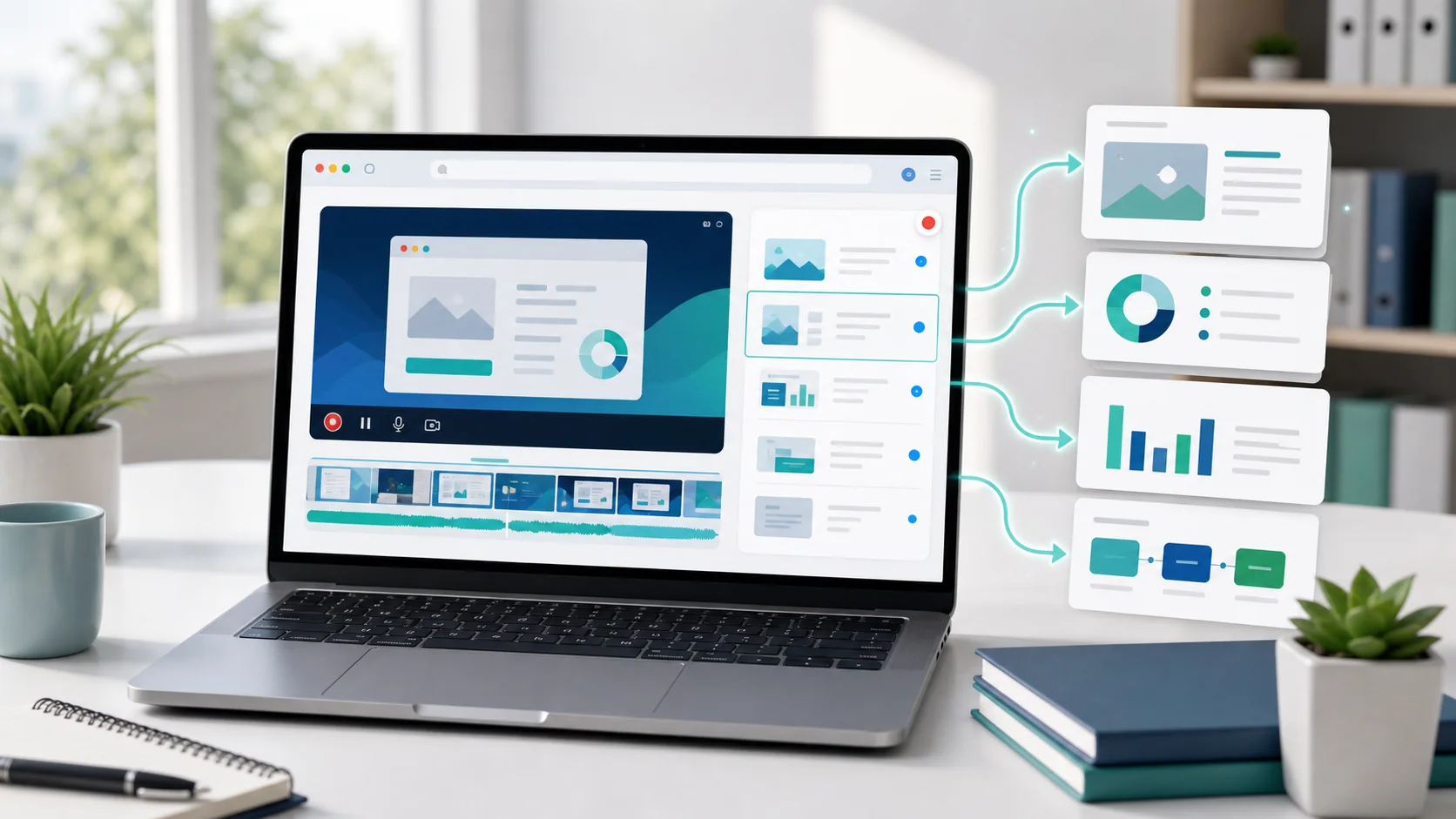
SyncSlide automates scene detection, optional text extraction, transcription, and slide generation while leaving you with a review step before export.
But what happens when the output is good enough — but not quite what you had in mind?
AI Slide Redesign adds that comparison step to the existing review workflow.
The Problem We Solved
Until now, SyncSlide generated slides that faithfully captured your video content with high-fidelity images, editable extracted text, and aligned speaker notes. But slide design is subjective. A raw slide capture from a Zoom meeting does not always look the way you would present it to a client.
Previously, you had to export to PowerPoint or Google Slides before making a visual alternative. That added another handoff before you could compare versions.
AI Slide Redesign provides a reviewed alternative inside the same slide-editing workflow.
How It Works
AI Slide Redesign is built directly into the Slide Editor. Here's how:
1. Select Your Slides
Open any completed job in the Slide Editor. Click on a slide thumbnail to expand it, then check the slides you want to redesign — one, several, or all of them.
2. Choose a Design Template
Click the ✨ Regenerate with AI button in the toolbar. A gallery of design templates appears:
- Professional — Clean, corporate-style slides with structured layouts
- Modern Minimal — Sleek, minimal design with generous whitespace
- Educational — Clear, structured slides optimized for learning
- Creative — Bold, eye-catching design with dynamic layouts
Pick the one that fits what you need.
3. AI Redesigns Your Slides
For each selected slide, our AI looks at three things:
- The slide image — to understand the visual layout, photos, diagrams, or charts
- The extracted text — to make sure nothing important is left out
- The speaker transcript — to create meaningful, context-aware speaker notes
SyncSlide generates a redesigned version with a fresh visual, revised text, and speaker notes for you to review. The generated visual is a raster slide image rather than a set of editable PowerPoint shapes; extracted text and speaker notes remain available separately for editing. Generation time varies with the selected slides and service load.
4. Switch Between Saved Versions
Each successful redesign is saved as a new version alongside the original while the job remains available. A version switcher appears on each redesigned slide, letting you compare the original with its saved AI-redesigned versions.
PowerPoint and PDF exports use the active version of each slide. A connected Google Slides account uses that version too.
Which Template Should I Use?
Each template produces a distinctly different result. Here's a quick guide:
| Template | Best For | Style |
|---|---|---|
| Professional | Client presentations, boardroom decks | Clean lines, corporate colors, structured layout |
| Modern Minimal | Executive summaries, internal reports | Generous whitespace, focused content, sleek aesthetic |
| Educational | Lecture notes, training materials, study guides | Clear hierarchy, learning-optimized structure |
| Creative | Marketing content, social media, tutorials | Bold visuals, dynamic layouts, high visual impact |
You can redesign the same slide with another template and compare the successfully saved versions.
What About Credits?
AI Slide Redesign uses credits per slide. The exact cost per slide is shown before you confirm, so there are no surprises. You can redesign a single slide or batch-process multiple slides at once.
If generation fails, the reserved credits are released or refunded. The confirmation screen shows the current cost before you start.
Version History: Keep the Original Alongside Redesigns
We think of Version History as AI Slide Redesign's safety net. Every redesign is saved alongside all previous versions:
- Original — the slide as it was first captured from your video
- Professional — your first AI redesign
- Creative — a second redesign with a different template
Use the version switcher to compare saved results. You can try the Modern Minimal look, compare it with the Educational layout, and return to the original while the job remains available.
Try It Today
When AI Slide Redesign is available in your editor, here is how to use it:
- Go to your Dashboard → open any completed job
- Click "View & Edit Slides" to enter the Slide Editor
- Select slides you want to redesign (click on a thumbnail first to expand the editor)
- Click ✨ Regenerate with AI → choose Professional, Modern Minimal, Educational, or Creative → done
Review each generated version before export. Version History keeps the original slide available while you compare redesigns.
The editor shows current availability and the exact credit cost before you confirm.